
Import non-AMS-synced Contacts Into NoteRouter with a CSV File
Create a CSV file with columns for the Contacts' First Name, Last Name, and Email
In the Manage screen, click on Contacts then on Add at the top right and select Import from File
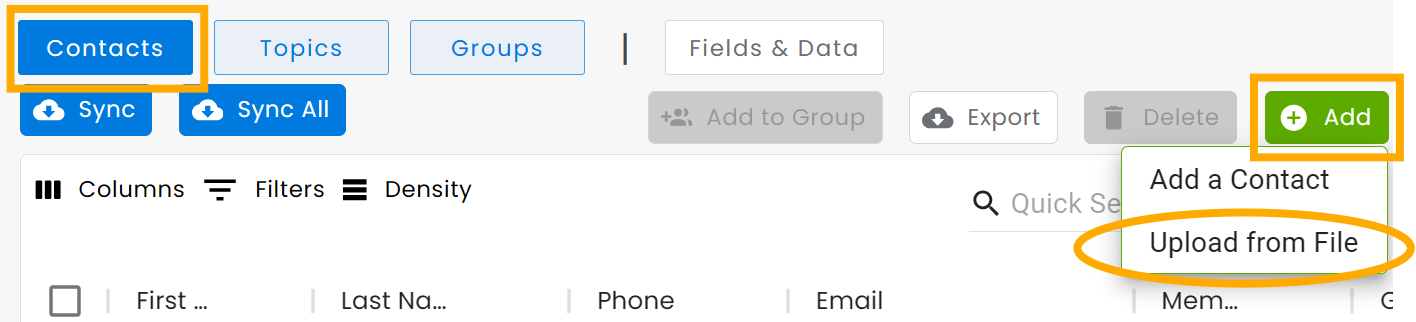
Select the CSV file, and answer the Organizing your New Contacts questions. Make sure to NOT allow duplicates
Then click Next then connect the columns from your CSV to the corresponding NoteRouter Fields, then click Finish
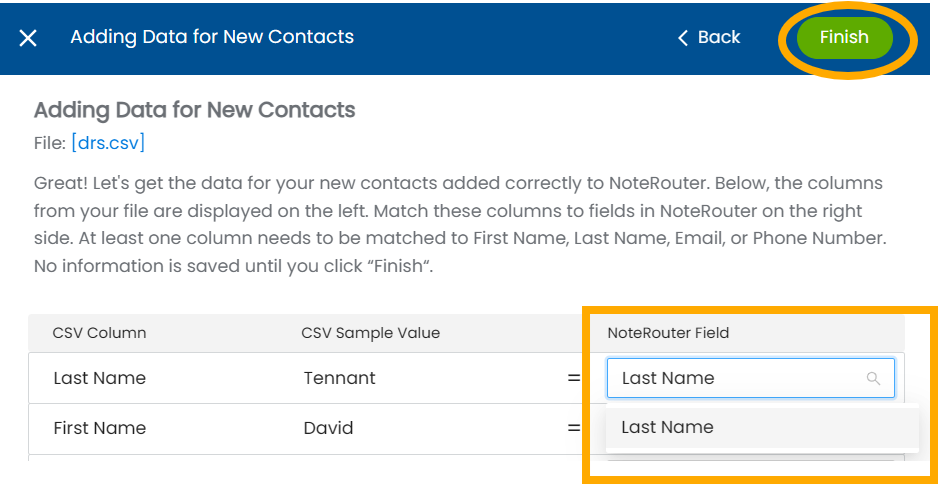
Finally, click Finish again once they've loaded - now your new Contacts are in NoteRouter!