
Currently supported by: Rapattoni Cloud Magic AMS
Support coming soon for: RAMCO AMS, GrowthZone AMS
Introduction
NoteRouter's Events integration allows events, classes, and courses in your membership database to sync into NoteRouter, where they are all collectively called "Events." This integration enables your team to do new things, such as:
- Target messages instantly using registration data
- Connect messages to events for easy Analytics
- View message engagement for Events using the Events screen
Data Sync Note: This data is synced directly with the events, classes and courses in your membership database. NoteRouter syncs with all events, classes, and courses in the current year, plus an additional 5 years of history.
NoteRouter's Events sync also syncs with the registrant data for the synced events, classes, and courses going back 5 years. This means that it's normal to have a number of contacts who are no longer members syncing into NoteRouter as nonmembers from your membership database. Some registrants for previous events may have previously been a member who registered when the event took place, but are no longer current members. Alternatively, a contact may be nonmember attendee who registered for an event that was open to the public.
Event and Class Filters in the Audience Builder
Let's say you'd like to instantly target a message to the registrants of an event or class. In the Audience Builder, as we've shown before, this is now possible thanks to a new Filtering category called Events & Classes. (Click here to learn more about Filters.)
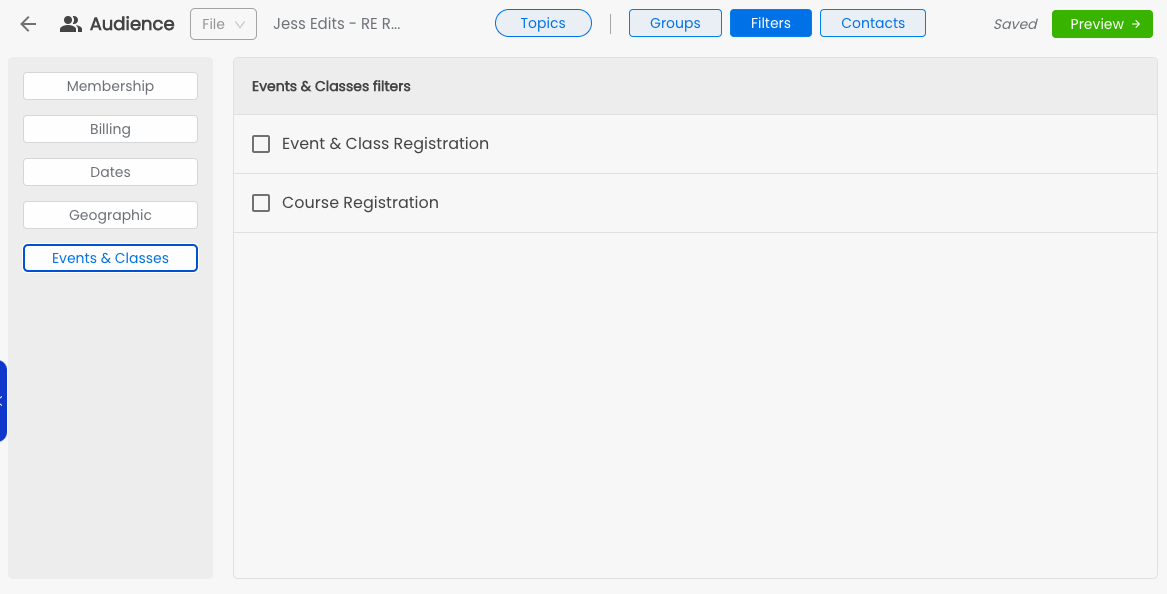
When using the Event & Class or the Course Filters, start by deciding if your message should target either registered or unregistered contacts using the first dropdown field.
Next up, pick the particular event, class, or course you want to target registrants (or non-registrants) by searching and selecting the name or ID for the event, class, or course.
A courses will often cover a large number of repeating classes, so when targeting course registrations, you'll be asked to select a date range in order to define a timeline for which classes within that course should be targeted by the message.
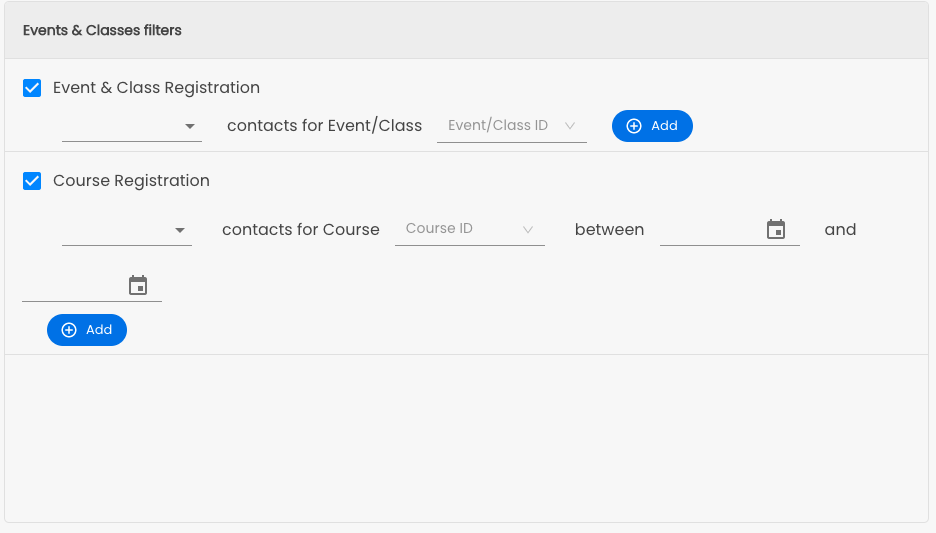
Selecting multiple Events/Classes or Courses will result in very specific targeting criteria (examples below.) If you're not sure how an Audience is being targeted, check the Audience Summary at the bottom, and reach out to support@noterouter.com if you're still not sure.
Multiple values entered under one filter combine with "or" logic.
Example Audience: Contacts who did/will attend New Member Orientation or who did/will attend Realtor Happy HourMultiple selected Filters combine with each other using "and" logic.
Example Audience: Contacts who did/will attend New Member Orientation and who are grouped as Agents.And of course, you can get fancy with detailed combinations.
Example Audience: Contacts who did/will attend New Member Orientation and who are grouped as Agents and whose Home State is California and whose Office City is Newbury Park or Thousand Oaks.Events Hub (Event Messaging Analytics)
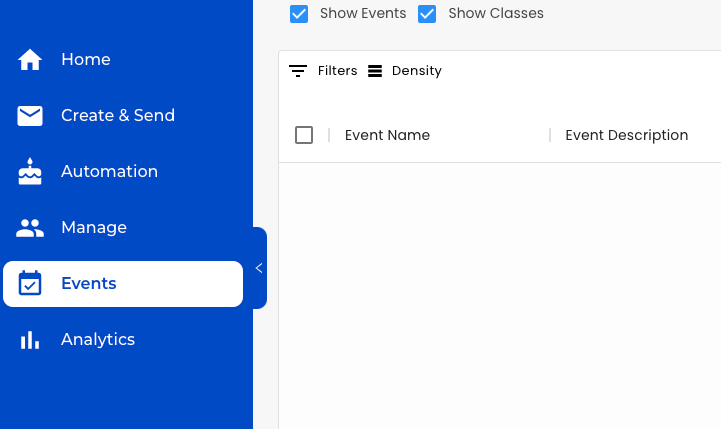
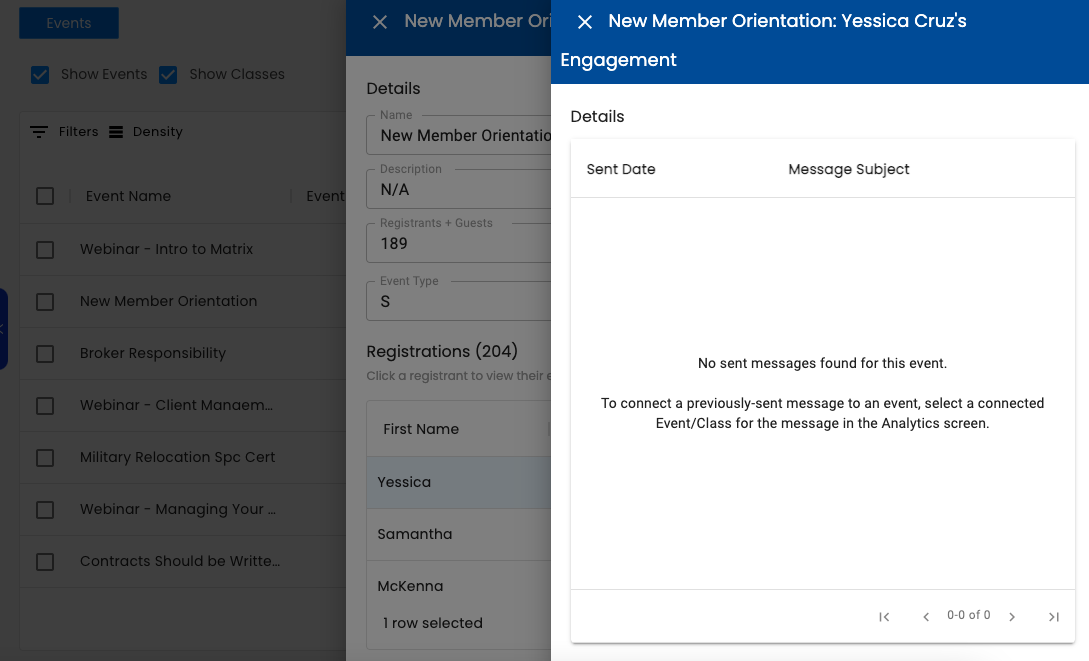
The Event Hub provides an easy way for you to view the past 5 years of Events & Classes from your membership database, plus details on the registrants for each event and engagement insights on how they interacted with your event messaging.
Click on an event to open and view its details, including a list of all registrants for the event. You can optionally choose to show or hide cancelled registrations from the list.
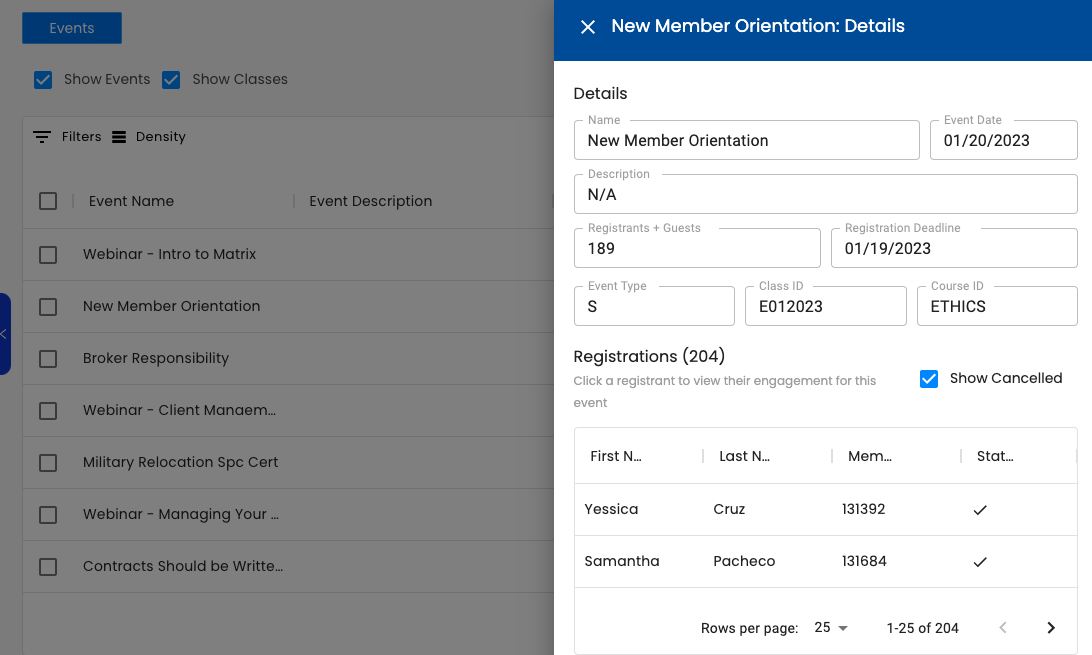
Click a registrant to view any messages connected to the event that the contact has been been targeted to receive. You can then click any of those messages to expand it and view any engagement that the contact had with the message, including any delivery issues.
Connecting a Message to an Event
You might be wondering, "how does NoteRouter know that a message is connected to an event?"
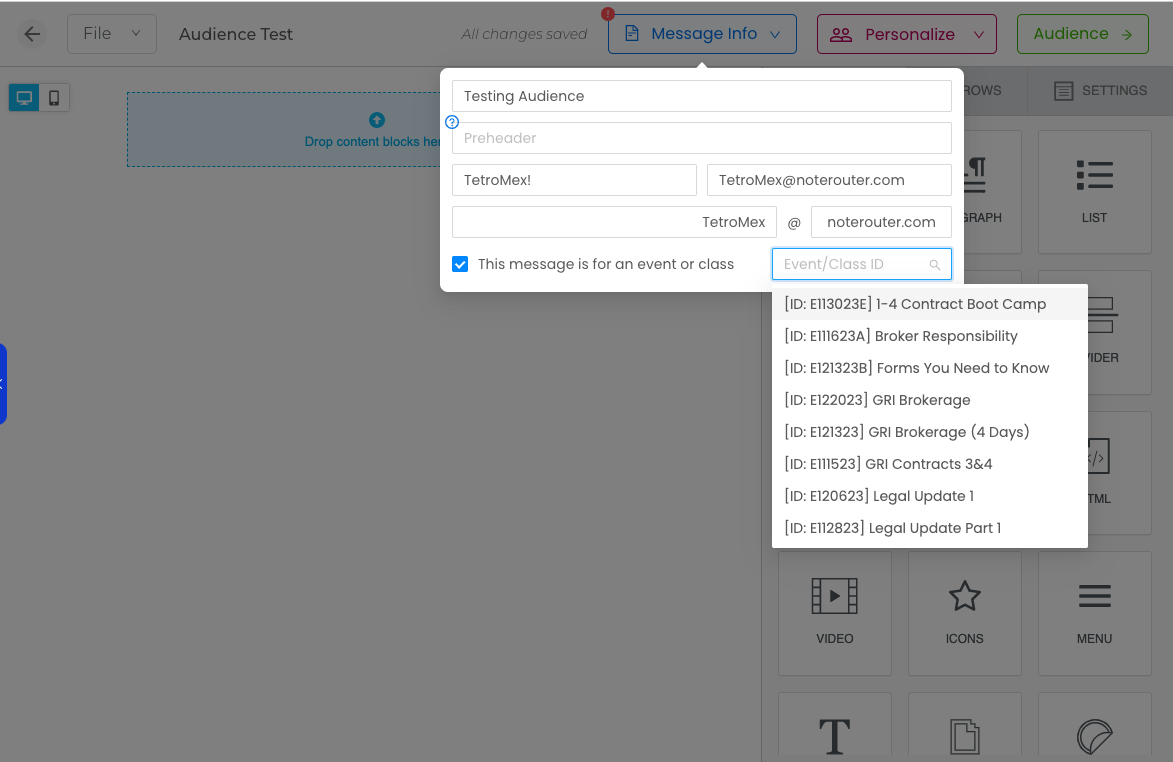
Great question! NoteRouter does not automatically assign your message to an event. Before you send an event-related message, you'll want to connect your message to the event by using the "Message Info" section at the top right of your message design screen. There, you will see a checkbox where you can specify that it is for a specific event. Simply click it, then search and select the event's name or ID.
What if you forgot to do this before sending a message and your message has already sent? What if you want to go back and retroactively connect an old message to an event? We've got you covered!
In the Analytics screen, find the message you want to connect to an event. Use the field labeled "Connected Event/Class - click to select" to search and select an event or class using its name or ID.
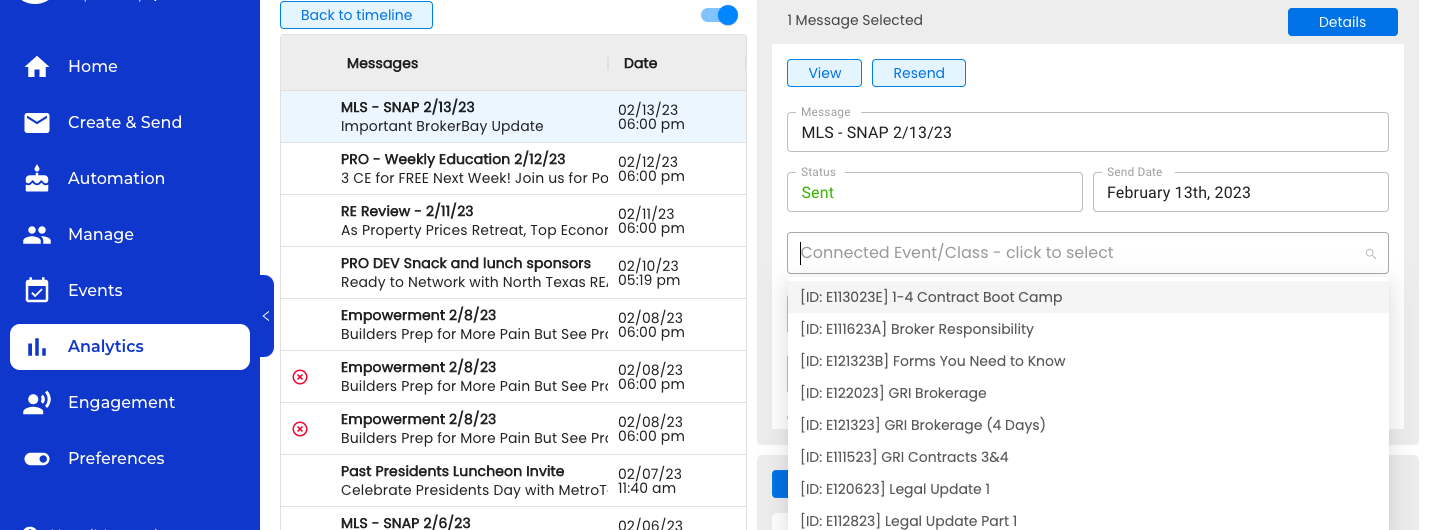
Once you've selected the event or class you wish to assign the message to, it automatically saves. If you ever need to undo the connection, simply click the "x" on the right side of the field to remove the selection.
Conclusion
Hopefully, this deep dive on the Events & Classes integration has given you some helpful insight on how to use this feature as another way to target a specific audience based on a class, event, or course.
As always, reach out to our team at support@noterouter.com with any additional questions you might have!