Introduction
This article will detail the process and requirements for updating your fields and data via .CSV using the Fields & Data manager. The Fields & Data manager is a powerful tool that allows you to store and utilize data and information that you may have for your contacts from other places. For some basic starter information on managing fields and data in the Fields and Data suite, check out this article.
Formatting Requirements
NoteRouter's Fields & Data upload tool allows you to quickly update your data, no matter what columns are named are in your CSV. Remember to include at least one column of "Unique Identifiers" that can be used to connect the CSV data to your existing contacts in NoteRouter (e.g. NRDS #, Member #, email address, etc.)
During the upload process, you'll be able to pick which column/field you'd like to use to connect the CSV data to your contacts. You'll also be able to create new fields on-the-fly during the data upload process if the fields don't exist already.
Step 1: Get there
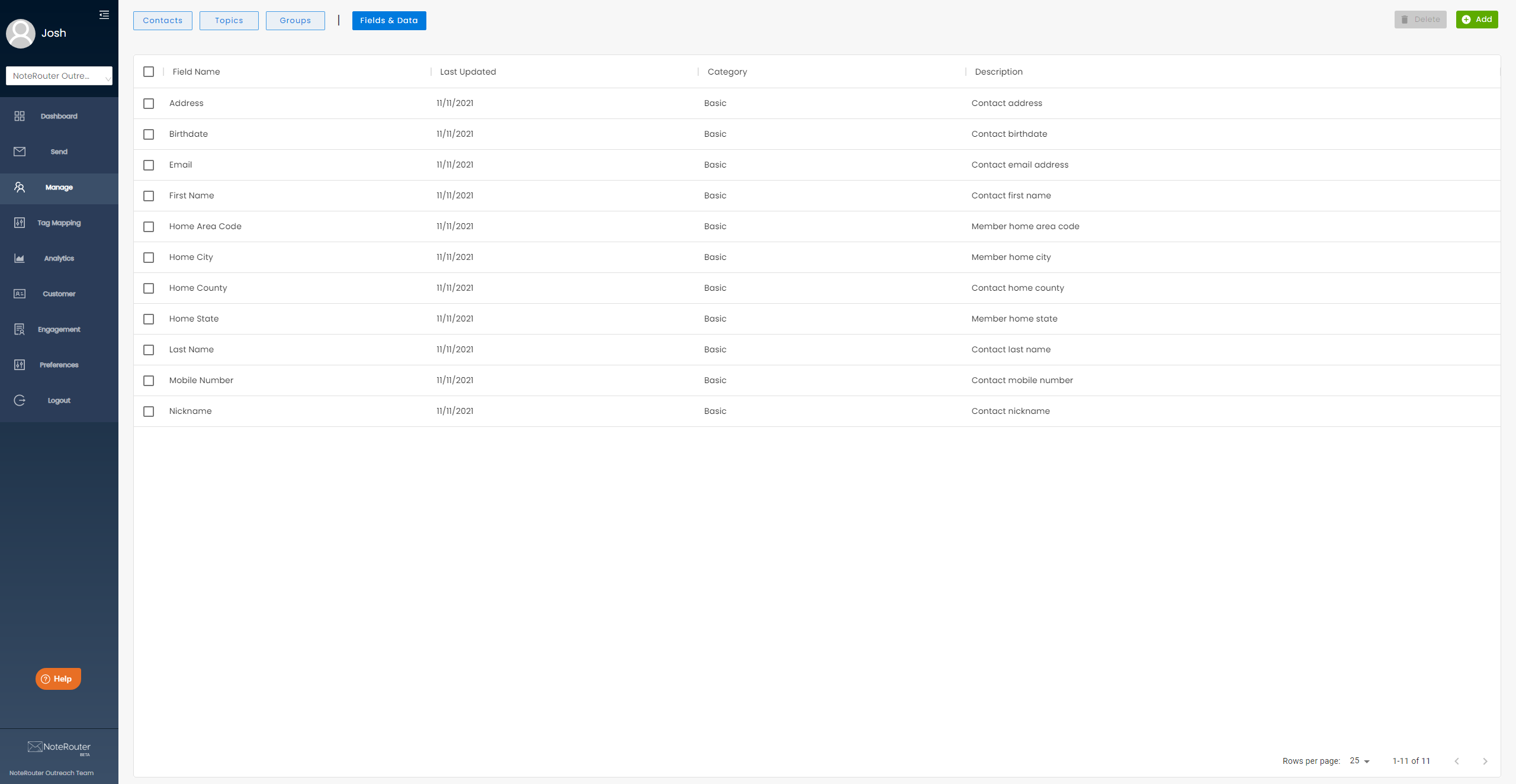
Start by navigating to the Fields & Data suite. You can do this by selecting "Manage" in the navigation bar, then click the "Fields & Data" tab at the top of the screen.
Step 2: Select the Field
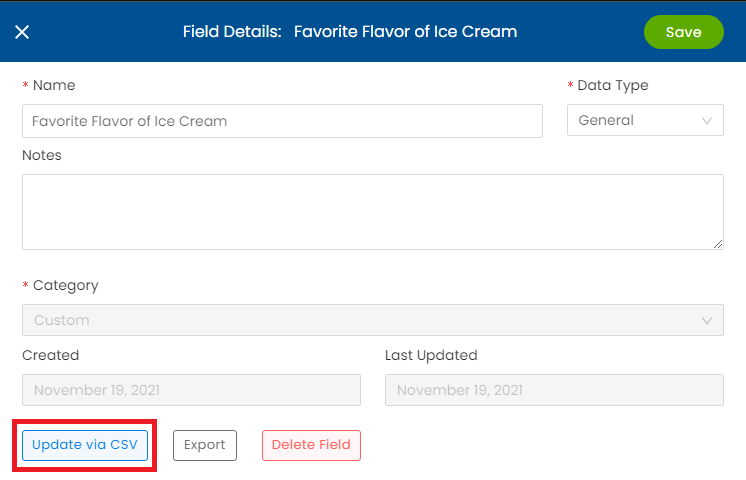
Once you're in the Fields & Data suite, open the relevant Field Details panel by clicking on the appropriate field's name. In the Field Details Panel, select "Update via CSV" to begin the update process. This will prompt you with a file selector to choose your CSV.
Your CSV file should have a list of contacts you'd like to update the field for (represented by at least a name, an email, or an ID number,) plus a column for the relevant field with any needed values.
Note: Uploaded values for a field will overwrite any existing values that contacts may have saved.
Step 3: Data Matching
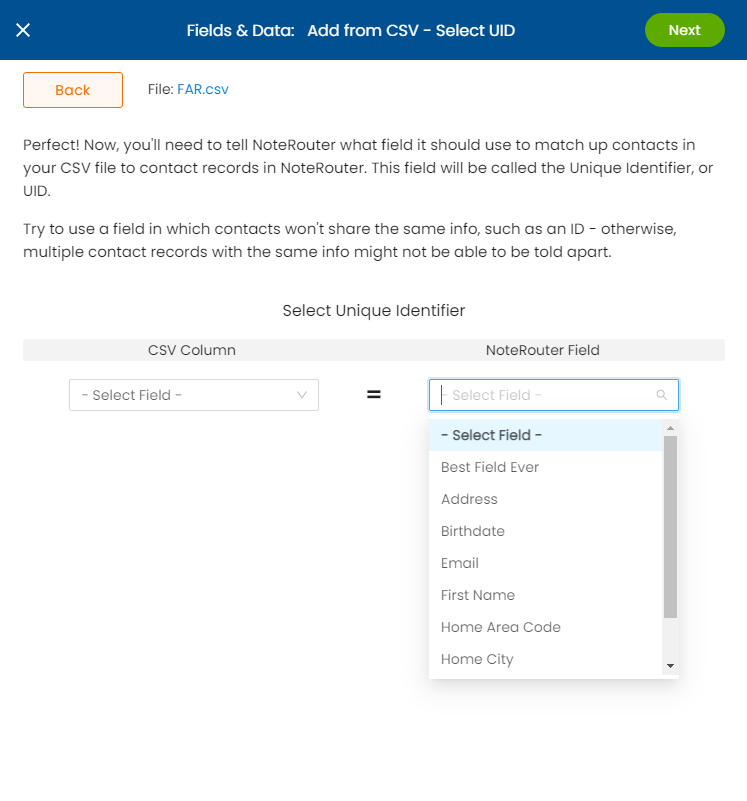
Once you've chosen and uploaded your CSV file, you'll need to tell NoteRouter how it should match existing NoteRouter contacts to contact rows in your CSV file. To do this, you'll be prompted to match the appropriate CSV column to an existing NoteRouter Unique Identifier for your contacts. We recommend using the most unique identifier possible (one that contacts would never share) such as NRDS # or Member #. Simply select the appropriate column from your CSV on the left side, and match it to the equivalent field in NoteRouter on the right. Once you've done so, hit "Next" in the top right.
Step 4: Updating the Field
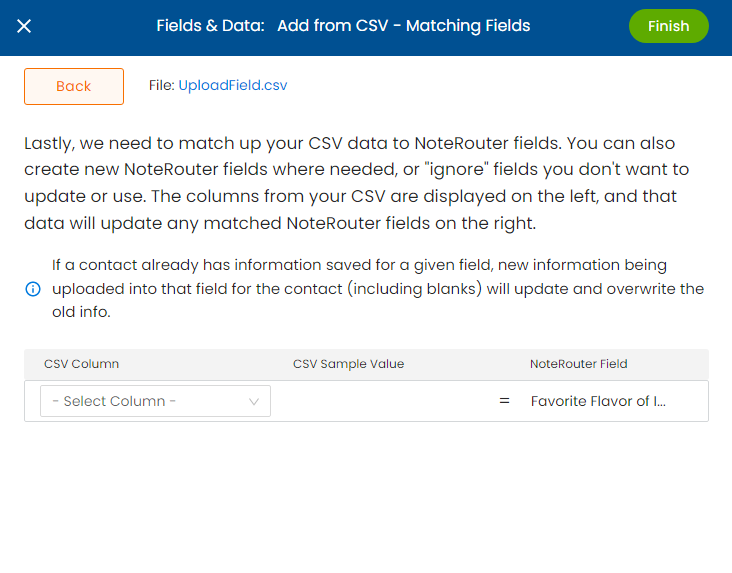
After selecting your Unique Identifier, you will be prompted to match the relevant CSV column to the NoteRouter field you're updating. Select the appropriate column on the left, and NoteRouter will provide an example value from that column for you to double check your data.
Once you've confirmed the column, hit "Finish" in the top right and NoteRouter will provide the results of your update in the bottom left of the NoteRouter window.