
Fields and Data
TABLE OF CONTENTS
Introduction
The Fields and Data suite can be used to power-up your communications with data you may have for your contacts from other places. The functions of this feature range from tracking a few of your contact's favorite ice-cream flavors, to putting high-powered data to work that might not be available to use anywhere else, such as major donors, top producers, and any other information that might be helpful to you and your team for use in NoteRouter.
How-To (Managing Fields)
This article will provide step-by-step instructions for the basic management of your Fields and Data. If you are looking for more detailed information about CSV uploading and the process of connecting your data to your fields, check out this guide: "Uploading Fields and Data via CSV".
Navigating to "Fields and Data"
The Fields and Data suite is located on the "Manage" screen in NoteRouter. To make your way there, select Manage in the Navigation bar on the left-hand side of NoteRouter, then select the tab "Fields and Data" at the top of the screen while the "Contacts" tab is selected.
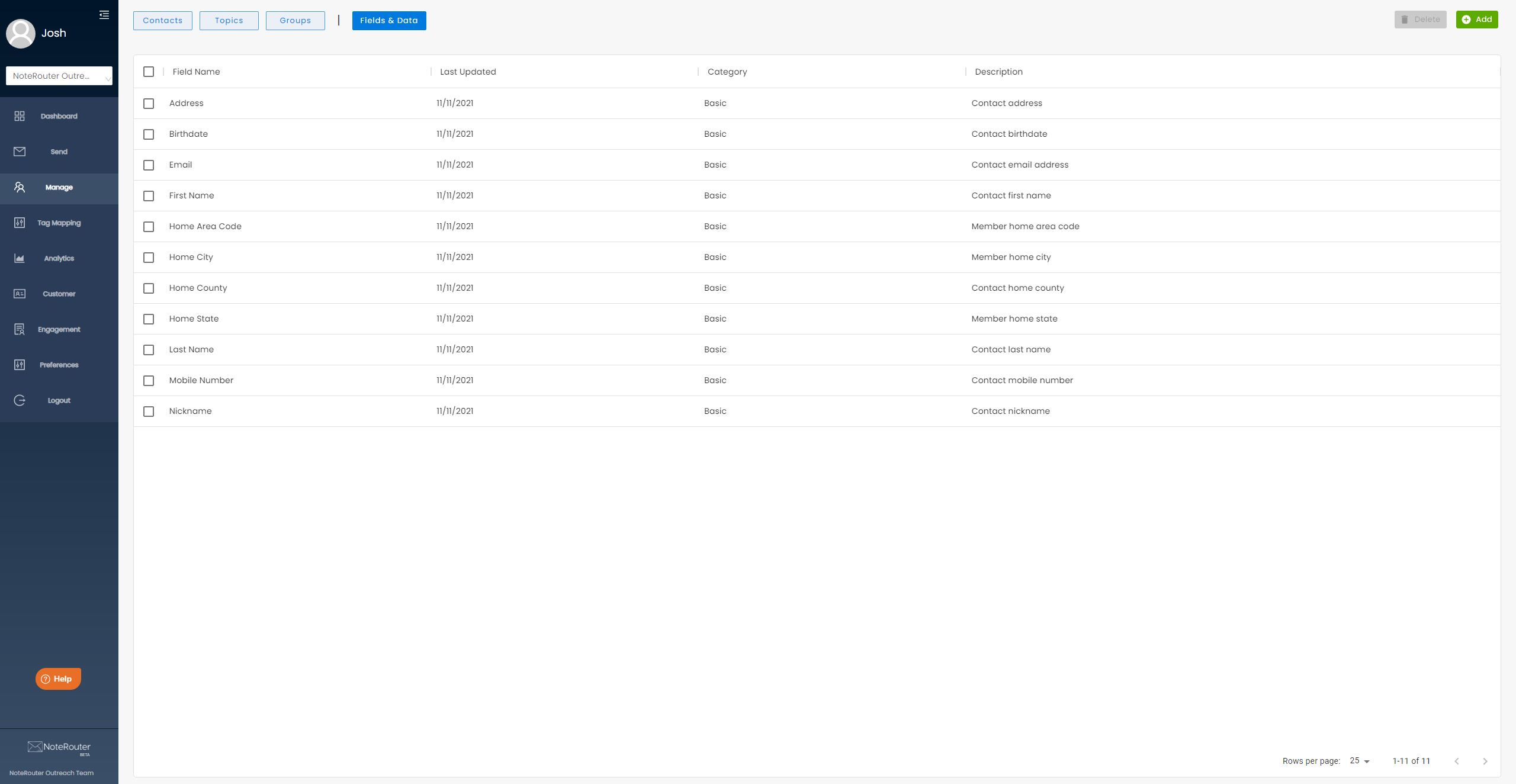
Initial Fields & Data View
Creating a new Field
Creating a new field is as easy as clicking the green "Add" button in the top right of the Fields and Data suite and selecting "Create a Field" from the drop-down menu. Give your new field a Name, confirm its Data Type, and give it a quick description in the Notes section if you'd like. After clicking "Save", the field will be created. The field will be available on all contacts, but will have no values saved.
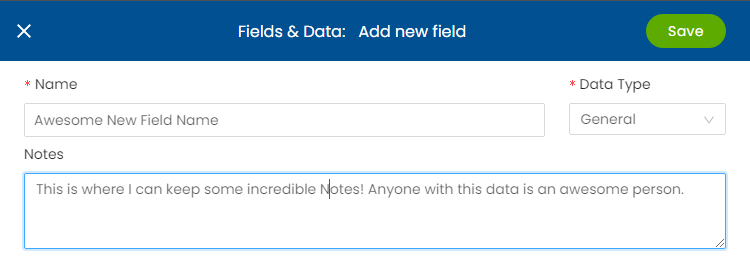
Name - The name you'll use to track and manage this field.
Data Type - General or Numeric. If you're unsure, stick with General - it's the safest option!
General: Also Known as string values, this data type works for just about everything.
Number: When a field will only be populated with numbers (no letters or other characters), use this option to increase performance.
Notes - Feel free to use this section to add a description or keep notes on a particular Field.
Once you've confirmed the setup for your new Field, click the "Save" Button in the top right to finalize.
Congratulations! You've created a new field.
Note: You can create a Field with the data values already populated on your contacts by selecting "Upload via CSV" in the "Add" button dropdown. For detailed information on that process, check out our article here. Removing a Field
Removing a field is just as easy as creating a new one. To start, select the Field you want removed by clicking the checkbox next to the appropriate Field Name. Then, select the "Delete" button located at the top right of the screen. NoteRouter will even check to make sure you're deleting the correct Field! After confirming that you have selected the appropriate Field, select "Yes, delete" to finalize.
Note: Basic-type fields can't be removed.
With the Field selected, the Delete button will become red and "usable".
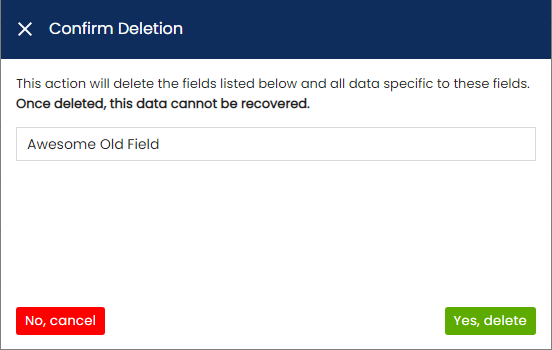
Confirmation Window
Updating an Existing Field - The Fields Detail Drawer
To update an existing field, open the relevant Field Details Drawer by selecting the desired field in the Fields and Data suite. In this Drawer, you can change any information - outside of "Category", "Created", and "Last Updated". The following information and features are available here:
Name - You can edit the name of the Field at any time, which allows for easy re-use and re-purposing of fields,
Data Type - The data type of the field. If you're unsure - stick with "General." The "Numbers" type can be used for fields that will only have pure numerical values (no characters besides 0 through 9) to speed up their processing time.
Notes - The notes for your field can also be changed at any time. Keep track of updates and describe your fields as they change.
Category - The "type" of data field. Basic-type fields are considered core functionality and can't be deleted, while Custom-type fields can be added and removed freely.
Created - Displays the date the field was created.
Last Updated - Displays the date the field was last updated.
Update via CSV - Allows you to update the field via CSV. See here for instructions.
Export - Creates a quick and easy export for the selected Field.
Delete Field - Alternate method of deleting a field.
Record Table - This can be used to select one or multiple records to view and manage them. To navigate the table, use the arrow keys in the bottom right, or the drop-down to change the number of displayed records.
Note: Fields that are being updated from an external source (usually a membership database/AMS) cannot have their values edited directly in NoteRouter, since this would create data conflicts. For these fields, update the value in the external database and the field will automatically update in NoteRouter.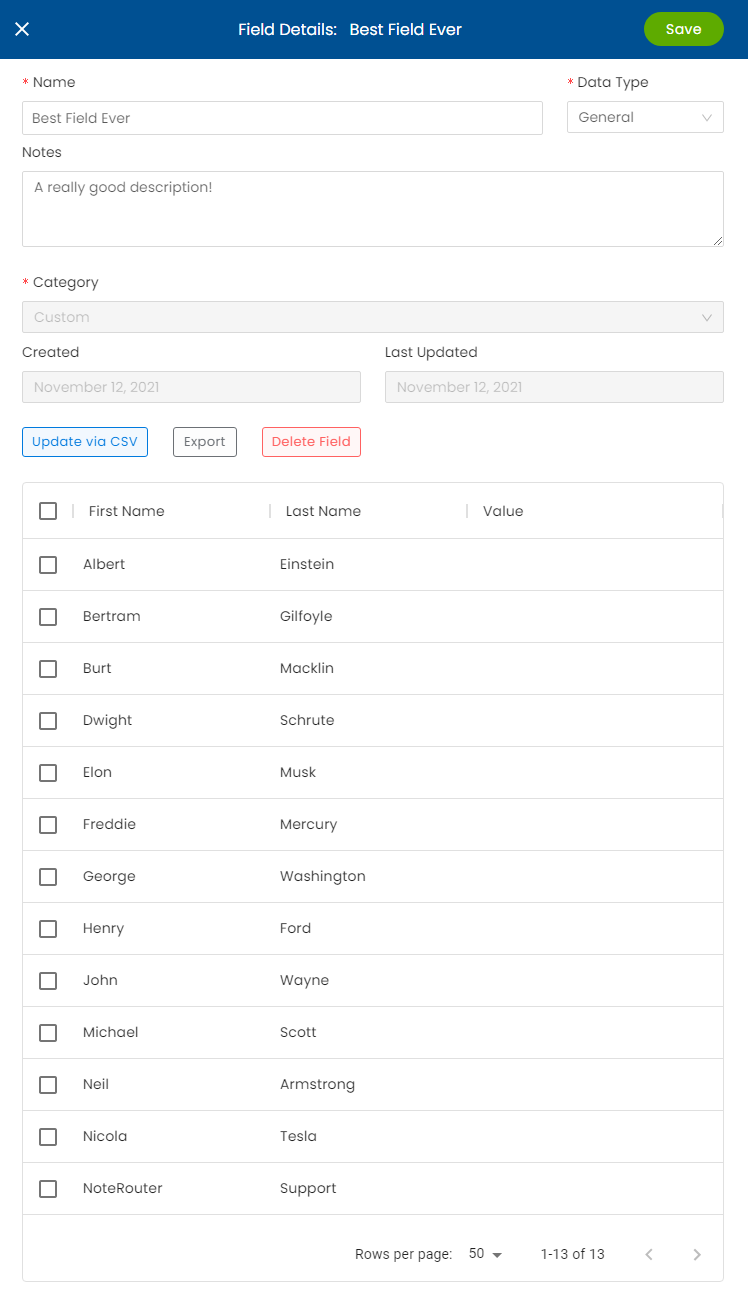
Field Details Drawer