
Background
This article covers how to create and utilize Anchors and Anchor Linking in your messages. Anchoring is a fun and easy tool that allows your contacts to instantly navigate to designated places in your message.
An Anchor is a specific location in a message. For our purposes, the anchors are the points where you want your members to be brought to in the message.
An Anchor Link is the link a contact will click that will pull them to the associated Anchor (desired location).
Note: Anchors and anchor linking won't be usable on all devices and email clients. Some clients (Outlook.. we're looking at you!) and devices don't always preserve the data that Anchor linking relies on, but this doesn't affect more than ~10% of inboxes. Part 1: Creating Anchors
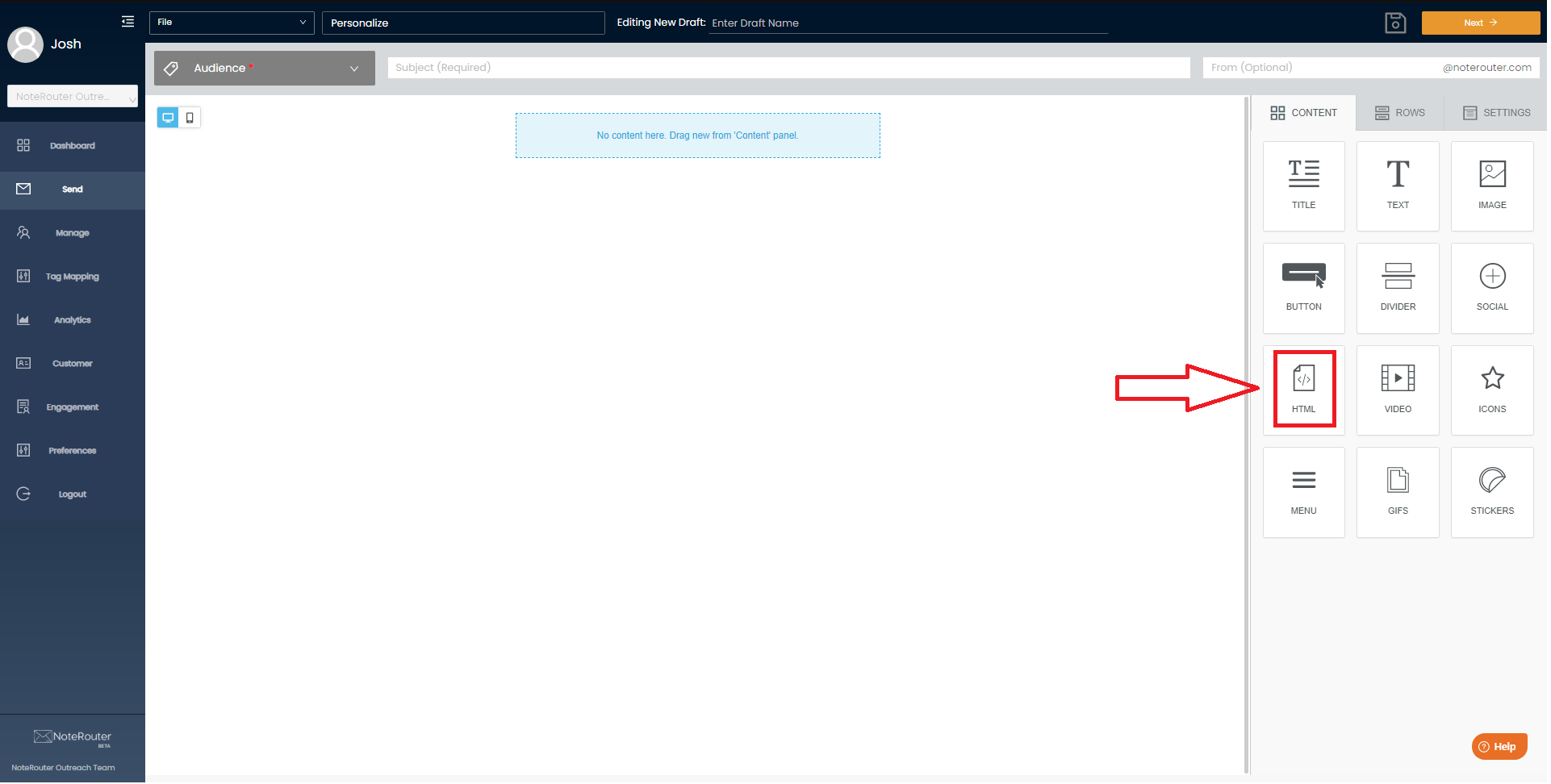
First off, we need to start by creating the anchors themselves - these are the locations where a contact will be brought to when clicking on an anchor's link. We will be using the HTML block to do this, which you can find on the right side of the editor, under "Content".
1. Start by dragging an HTML block just above where you want your first anchor location to be.
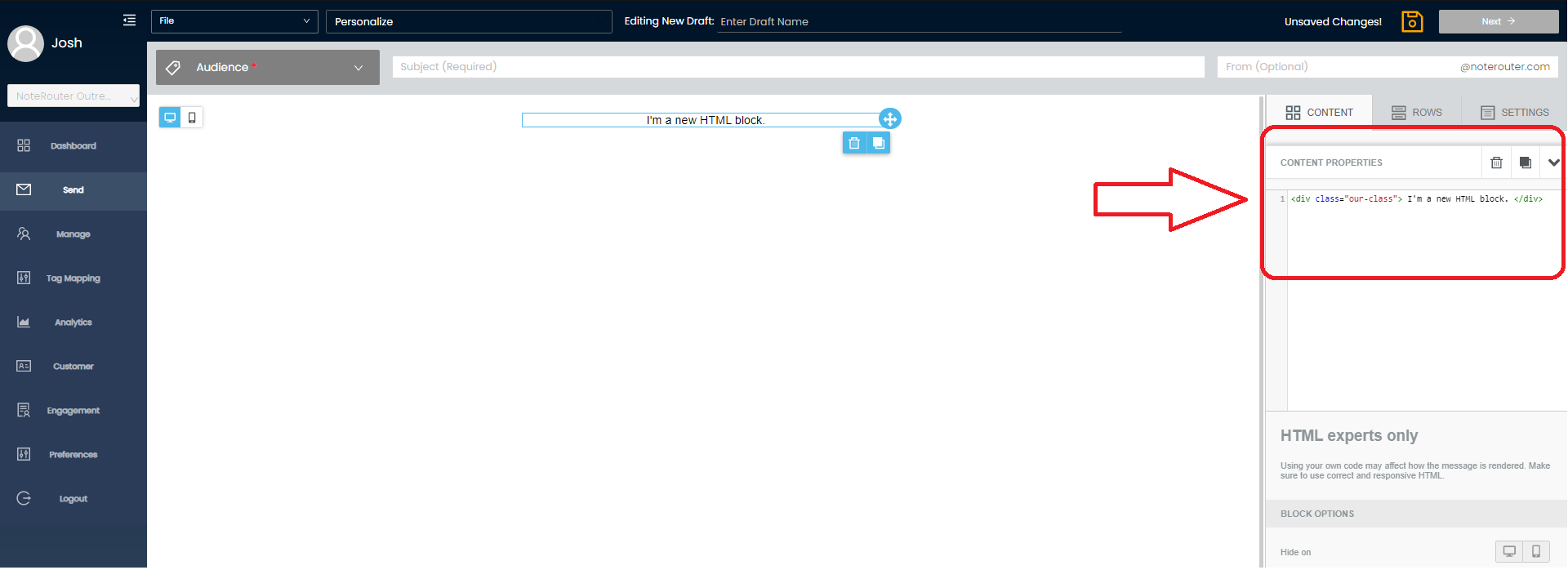
2. Then, select the HTML block in your message, and under "content properties" replace the placeholder HTML in the box with the following:
<a name="anchor1"><br /></a>
Idea: Try using descriptive words as your anchor titles, to make setup easy! For example, name your anchor "calendar" or "seminar" instead of "anchor1" to keep track of where your anchor is located!Now that you've created an anchor point, we're ready for Part 2: Creating the Link.
Part 2: Creating the Link
Next, we need to create the link that will bring the contact to the location of our first anchor, anchor1. To do this, select the element in your message that you want to turn into a link for your first anchor - this could be anything, such as a bit of text, a button, or even an image. We're going to then hyperlink that element. In the URL box, where you would normally put a web link, you're going to type #anchor1. That's it!
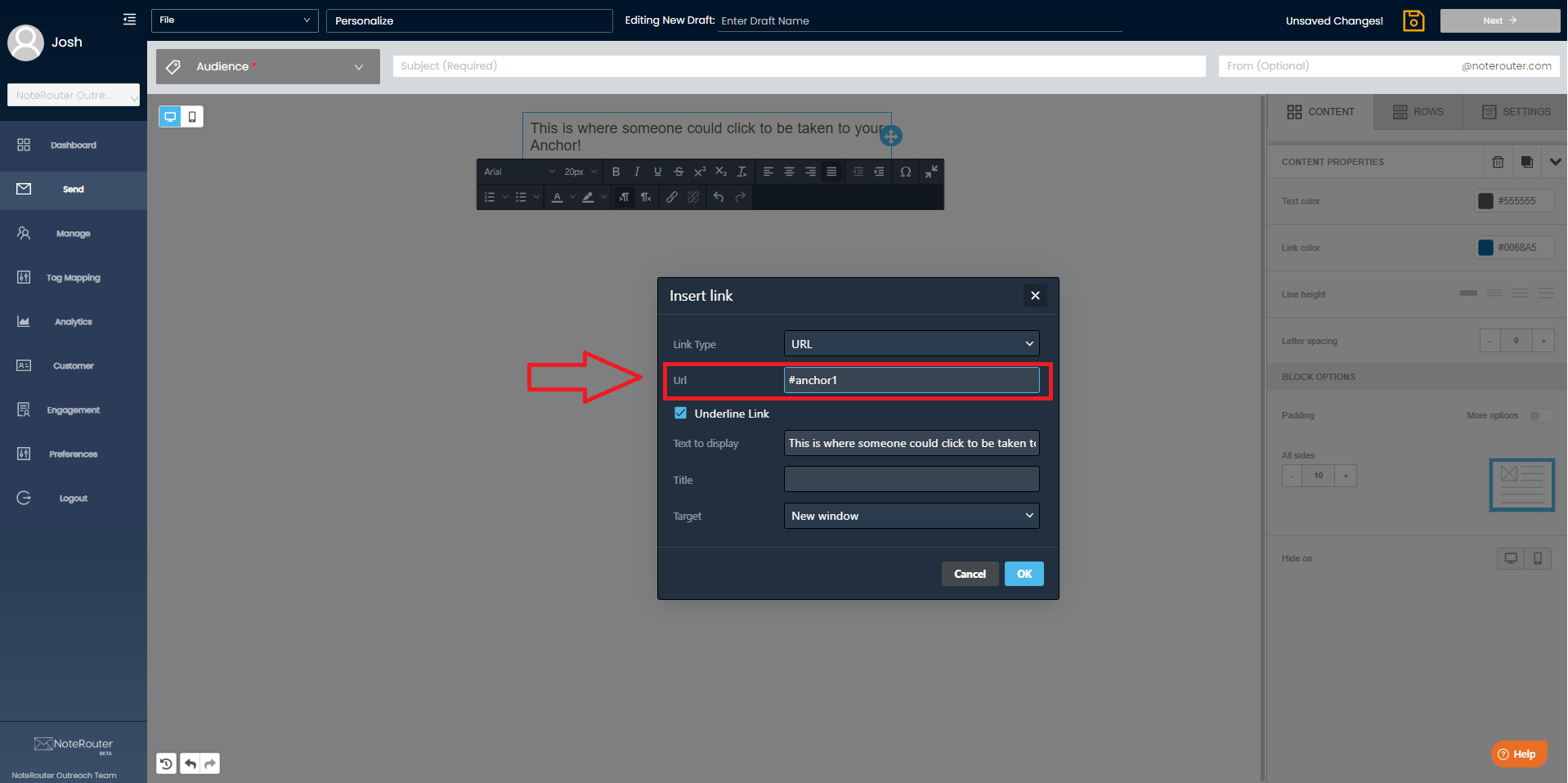
The element you just created will now instantly snap contacts to the location of anchor1 when clicked on. From there, it's easy to duplicate your HTML block, change the anchor's name, and follow the same steps above to create new anchor links for each new anchor.
Idea: Try using the "Menu" block for a easy and great-looking way to provide an organized table of contents for your readers! Part 3: Congratulations!
Mission success! You can now create an anchor point and link to it - creating a way for your contacts to jump to specific points of a message. Use these to link to sections of a table of contents, jump to important parts of a message, and streamline the viewing experience.