
Background
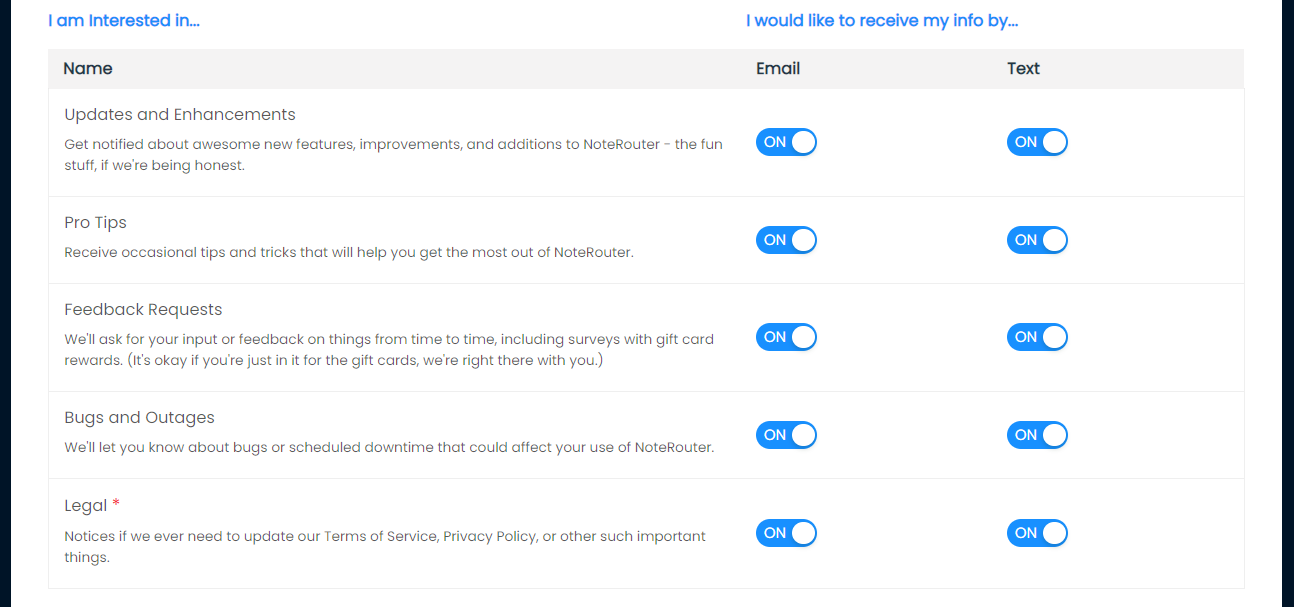
Your organization's Topics will appear on each contact's preference page according to what type of contact they are (member or nonmember.) Contacts use their preference pages to pick the Topics they are interested in as well as how they want to receive each one.
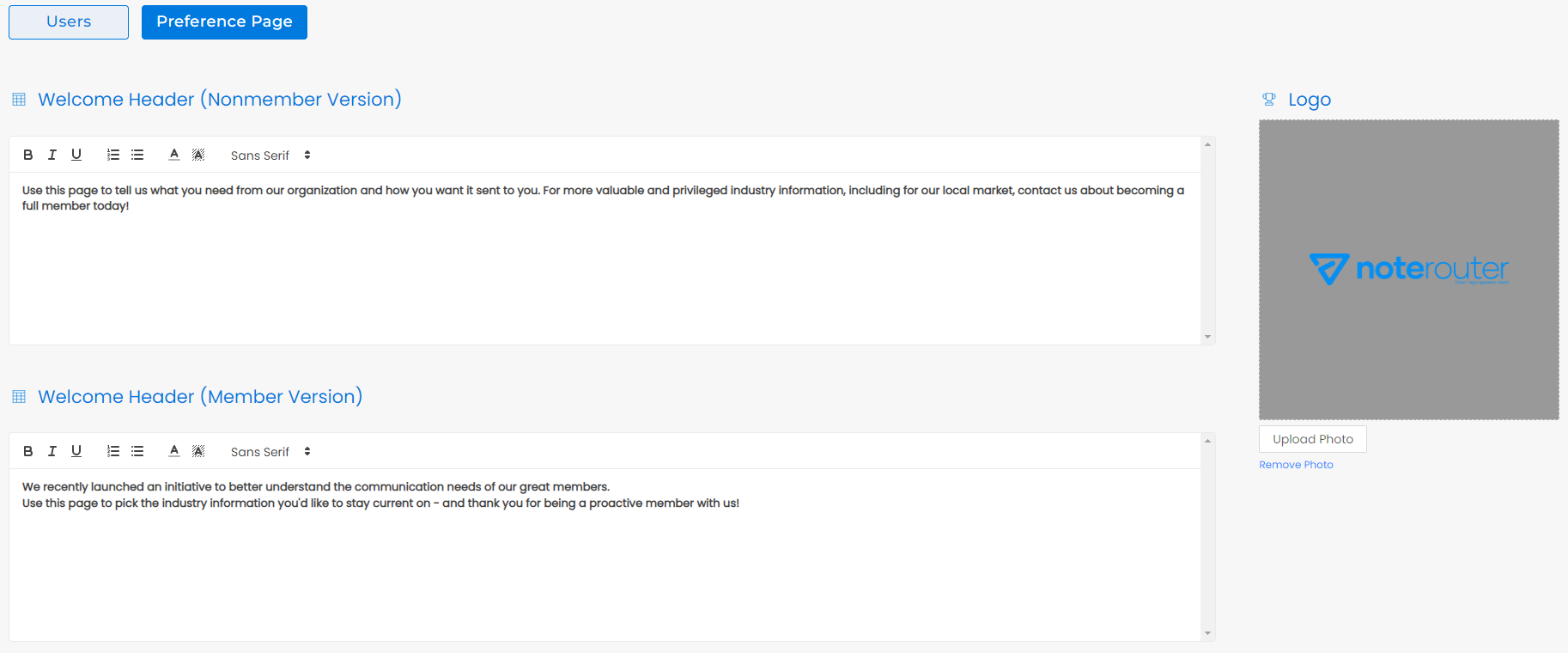
Each contact's preference page will also display a customizable header in accordance with where they're a member or nonmember. Staff Admin users can customize their logo and headers for your organization's contact preference pages at any time from the Organization > Preference Page screen.
Accessing Preference Pages
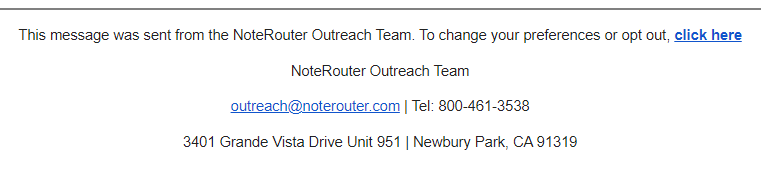
Contact preference pages are unique to every contact. The link to a contact's preference page can always be found in the autofooter at the bottom of every message sent to each contact. Autofooters are system-generated and are automatically added at the bottom of any message delivered to a member to ensure CAN-SPAM compliance (plus, it's just good etiquette!) Like the pages themselves, preference page URL's are unique to each contact.
You can also send a contact their preference page by finding them in the Manage > Contacts screen, clicking on the contact, and selecting the "Send Preference Page" button found under the contact's Topic preferences.

Tip: Links to preference pages can also be inserted into messages in custom ways. For details, see guide: How to: Personalizing Messages
Topics and Delivery
Each contact's preference page will display all Topics currently offered by your organization. Contacts can use the switches next to each Topic to easily opt in or out of any Topic by turning on and off the delivery methods for each Topic. Contacts will only see Topics that are available for the type of contact that they are - member or nonmember.
Note: Learn more about Topics, the order they appear in, and much more here -
FAQ: Understanding Topics
Contact Information & Your Membership Database
Each contact's preference page displays the current contact information on file for the contact according to what is stored in NoteRouter. For contacts synced into NoteRouter from an external membership database, this contact information is pulled directly from your organization's membership database.
Note: Not sure what contact info fields are being pulled for your AMS-sourced contacts? Drop us a note at support@noterouter.com.
NoteRouter syncs with your AMS's data constantly throughout the day at a rate of approximately once per hour. However, due to how long each sync takes, updates made in your membership database may take up to 2 hours to appear in NoteRouter (like if you made an update minutes after the last hourly sync just ran.) You can view when your data was last refreshed at any time on the Manage screen under the Contacts tab.
This same timing applies if a member updates their information through a membership portal or some similar means. Contacts will not be able to turn on a delivery option if they don't have corresponding contact info on file.
Example: A contact who does not have a phone number on file will not be able to turn on texting for any of their topics, and will be shown a notification.

Text Deliveries
Due to laws and regulations regarding commercial SMS (text) delivery, NoteRouter's texting capability abides by some special rules:
1. Contacts who wish to turn on texting for one or more Topics will be sent a confirmation text to the phone number they have on file. Until the confirmation text is responded to, texting switches for all Topic(s) will remain in the off position. Once the contact responds to the confirmation text, their texting switches will update instantly.
2. SMS versions of messages are only delivered during business hours for each time zone (8:00am - 6:00pm) all days of the week. Messages sent close to 6:00pm with large numbers of text recipients may have some text deliveries completed the following morning at 8:00am. Keep this in mind for time-sensitive alerts.
3. The actual test delivered to a contact's phone will contain basic information about the message with a link to view the full message. This allows messages delivered via text to preserve the exact format and content of messages delivered via email; including personalization, animations, videos, files, click/open tracking, and more.
Note: 24/7 text alerts for emergency communications are not available through NoteRouter at this time.