
Targeted Audiences: Leveraging Topics, Groups and Filters
NoteRouter doesn't utilize "lists" or "groups" of "contacts" in the traditional sense. For that reason, sending messages in NoteRouter can feel a little different at first. Read on to learn how to get the most out of NoteRouter's advanced Audience selector, which can be found by clicking the "Audience" button while working in the editor.
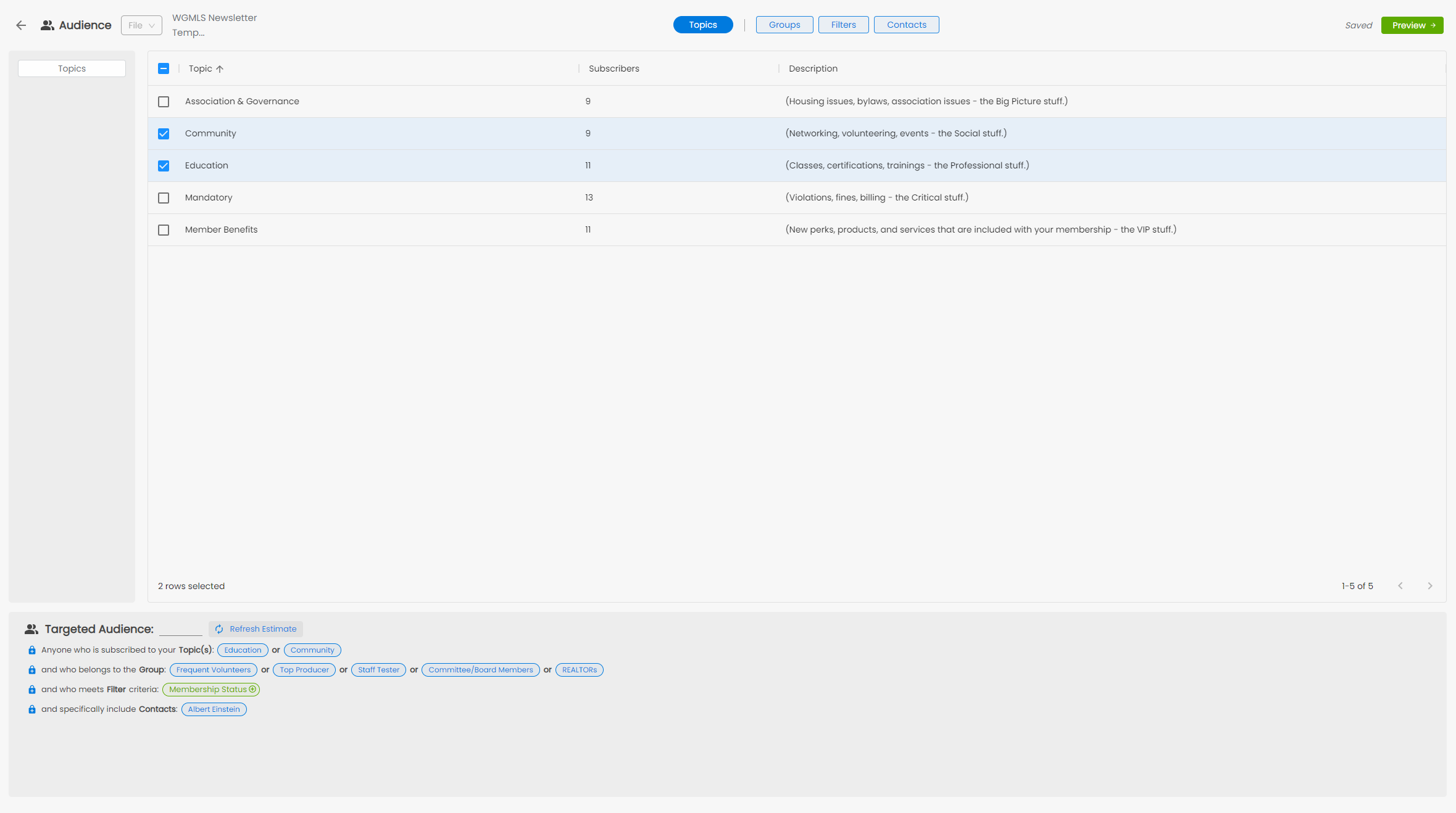
Audience Builder
Background: Message Audiences
NoteRouter is helping pioneer a consumer-centric communication model called permission marketing. This model of communication aims to provide members exclusively with information they actually value. Over time, this methodology results in substantially-higher membership engagement rates for entities like associations and MLSs.
Note: You can learn more about the power of permission marketing here.
To achieve this with high levels of automation, messages in NoteRouter aren't targeted directly to email addresses or phone numbers like in traditional, older communications platforms. Instead, messages in NoteRouter are targeted using Audiences.
An Audience is a collection of Topic interests, membership types, and various other data points which, when combined together, result in a very specific group of targeted recipients. You can also think of an Audience as a collection of criteria that will determine who should be targeted to receive a message.
Once an Audience is set for a message, NoteRouter will identify the exact contacts who should receive the message, and every contact will receive a personalized copy of the message however they preferred for that type of information - via email, via text message, or both.
A message's targeted Audience is the result of specifying Topics for a message in combination with any selected Groups and/or Filters.
Tip: You can quickly get an estimate and view these criteria by checking out the summary section at the bottom of the Audience screen! Simply "Refresh" the estimate to get an update.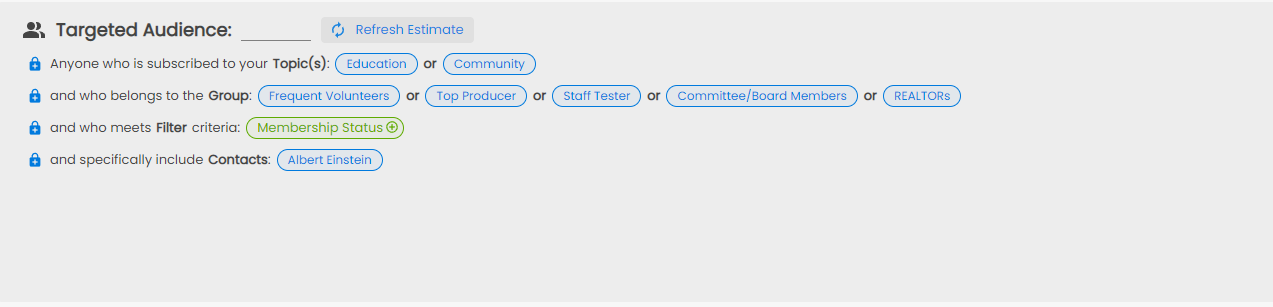
Topics
Topics are the first step in creating an Audience. At a minimum, NoteRouter needs to know what the content of a message relates to in order to determine which contacts want to receive that message. In the screenshot below, you can see that this audience sets a message to target contacts interested in the "Community" and "Education" topics.
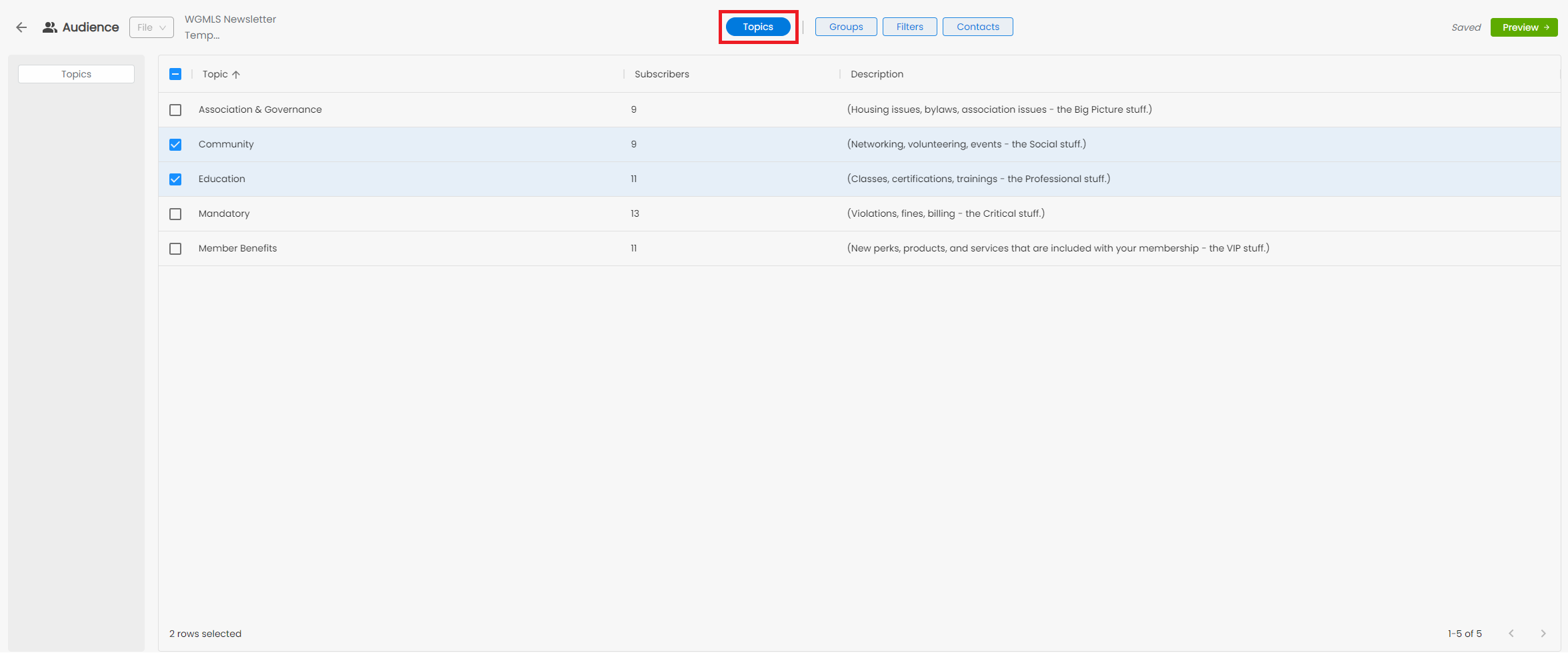
If you need to navigate to the "Topics" section of the Audience Builder, simply click the button labeled "topics" at the top of the page, highlighted above.
Selecting multiple Topics uses "or" logic - the message will reach anyone interested in "Community" or "Education."
Once the message's Topics have been set, two new categories of information become available that can be used to refine the Audience and target the message even more specifically: Groups and Filters, in addition to a contact selector.
Groups
Groups are part of the heart and soul of NoteRouter. Groups keep track of interesting things about your contacts, and they're useful for more than just looking at - here, they can be used to create sophisticated Audiences that result in even more highly-targeted messages.
With your Topic selected, you can move over to the next "Tab", which is Groups. Here, you can select from a variety of groups - some of which are custom made by you or your team, and others that are created and automated by our team here at NoteRouter.
To add a group to the criteria, simply select the green + button next to the group.
To exclude a group from the criteria, select the red x button.
To ensure a group is required by your audience, select the blue "lock" button.
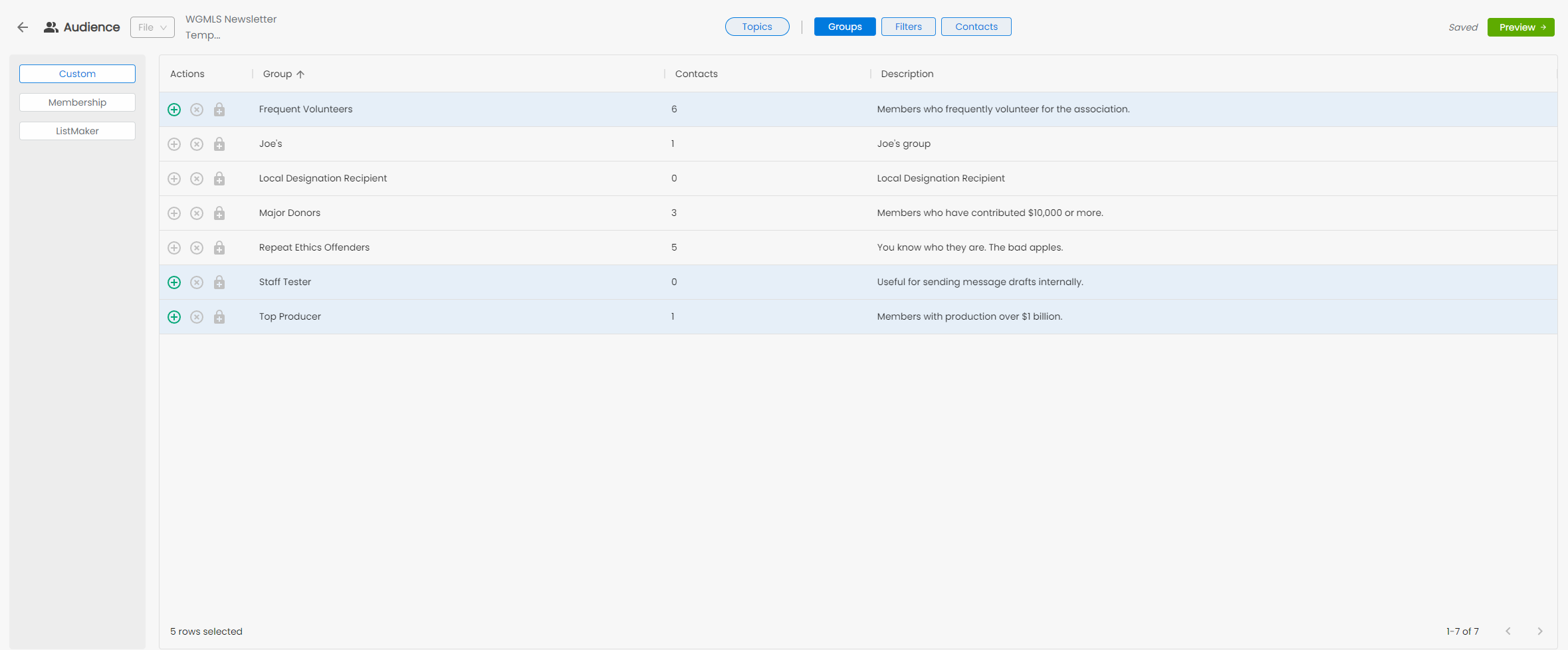
When Groups are selected for a message, they combine with selected Topics using "and" logic. Continuing our example from earlier, the Audience pictured above will look like this:
Example Audience: Members interested in Pro Tips and who are Groupped as Agents.Selecting multiple Groups will combine each Group with "or" statements. The above Audience could be updated to target any members Grouped as "Agents" or "Affiliates" Group by simply selecting both the "Agents" and "Affiliates" checkboxes.
Example Audience: Members interested in Pro Tips and who are Grouped as Agents or Affiliates.Sometimes, you may have multiple Groups selected, but you really want to require one particular Group to be present "at a minimum" in order for contacts to receive a message. You can Require Groups by selecting the "Require" option next to each Group once it's selected. "Required" Groups combine with other Groups using "and" logic.
Example Audience: Members interested in Pro Tips and who are Grouped as Agents or Affiliates but require Primary Members.
Similarly, you can also "Exclude" Groups to prevent certain contacts from receiving a message when they otherwise would be included and targeted to receive it.
Example Audience: Members interested in Pro Tips and who are Grouped as Agents or Affiliates but exclude MLS-Only Members.
You can also get fancy and combine all of these abilities.
Example Audience: Members interested in Pro Tips and who are Grouped as Agents or Affiliates but require Primary Members and exclude MLS-Only Members.
Filters
Filters allow you to refine an Audience and target a message using data that is often unique to each member - like Association information, billing data, or birthdays! The Filters that are available for your organization to use often depend on the data that NoteRouter is able to obtain from sources such as your AMS.
Any filters that are available will show up under the "Filters" tab, which you can navigate to at the top of the page. On the left-hand side, there will be additional filter choices - Dependent on your organization and AMS - for the types of filters you can choose from and utilize when building your audience.
Membership: This is typically data directly relevant to your AMS used for tracking your contacts.
Billing: Depending on your AMS source, NoteRouter can connect and help you reach out to people based on their billing information. Balance owed, specific charge codes, and other billing data can be used!
Dates: These filters will help you with any date-related targeting. If you want to target based on birthday, join date, license expiration date, etc. - this is the place to be!
Geographic: These filters allow you to target your contacts based on their location-based data.
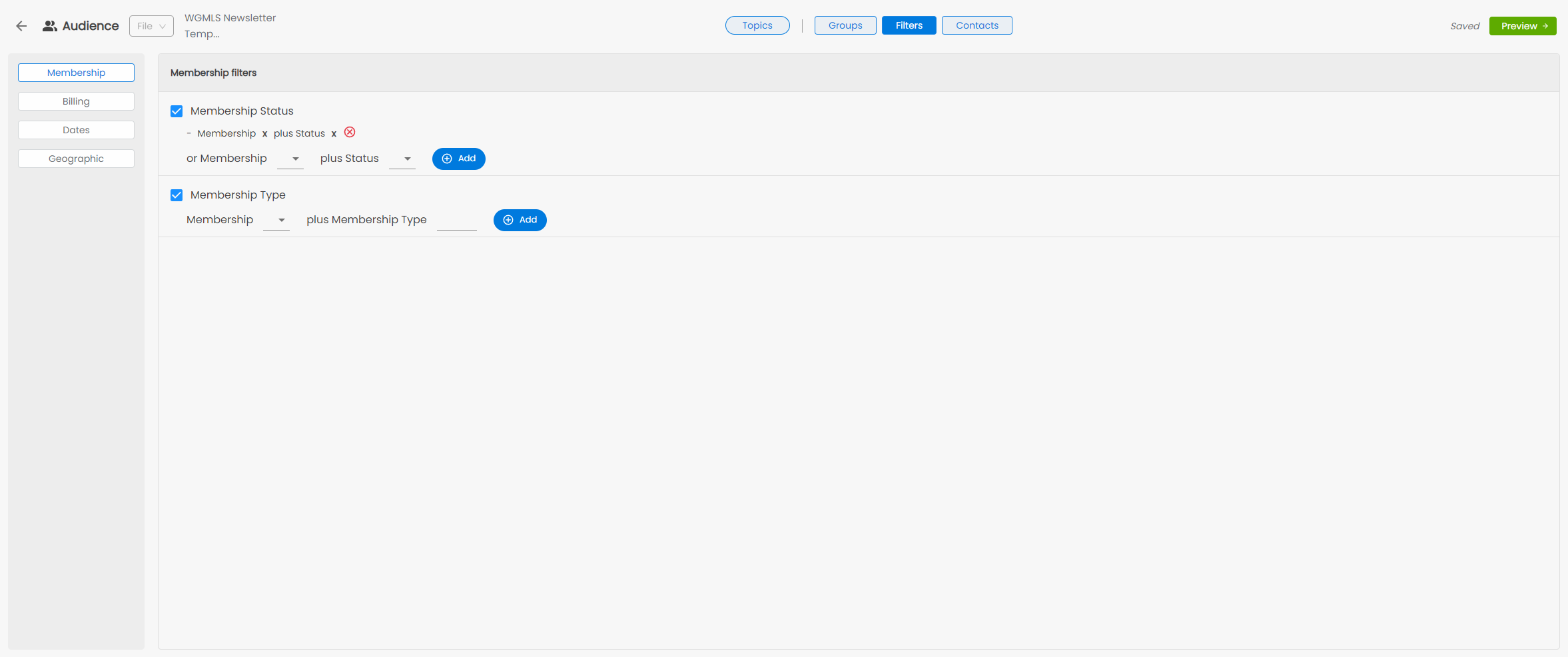
Selected Filters combine with selected Topics and Groups using "and" logic.
Example Audience: Contacts interested in Pro Tips and who are Grouped as Agents and whose Home State is California.Multiple values entered under one filter combine with "or" logic.
Example Audience: Contacts interested in Pro Tips and who are Grouped as Agents and whose Home State is California or ArizonaMultiple selected Filters combine with each other using "and" logic.
Example Audience: Contacts interested in Pro Tips and who are Grouped as Agents and whose Home State is California and whose Office City is Newbury Park.And of course, you can get fancy with detailed combinations.
Example Audience: Contacts interested in Pro Tips and who are Grouped as Agents and whose Home State is California or Arizona and whose Office City is Newbury Park or Thousand Oaks.Contact Selection
If all else fails, or if you just want to really make sure that a particular person is included, you can utilize the Contacts tab. Similarly to the other options, you can navigate to this section by clicking on its tab at the top of the page.
In the contacts tab, you can choose to add or exclude any contact that is currently opted in to at least one of the Topics that you have selected for the message. Simply choose the green + icon to add, or the red x icon to exclude any particular contact.
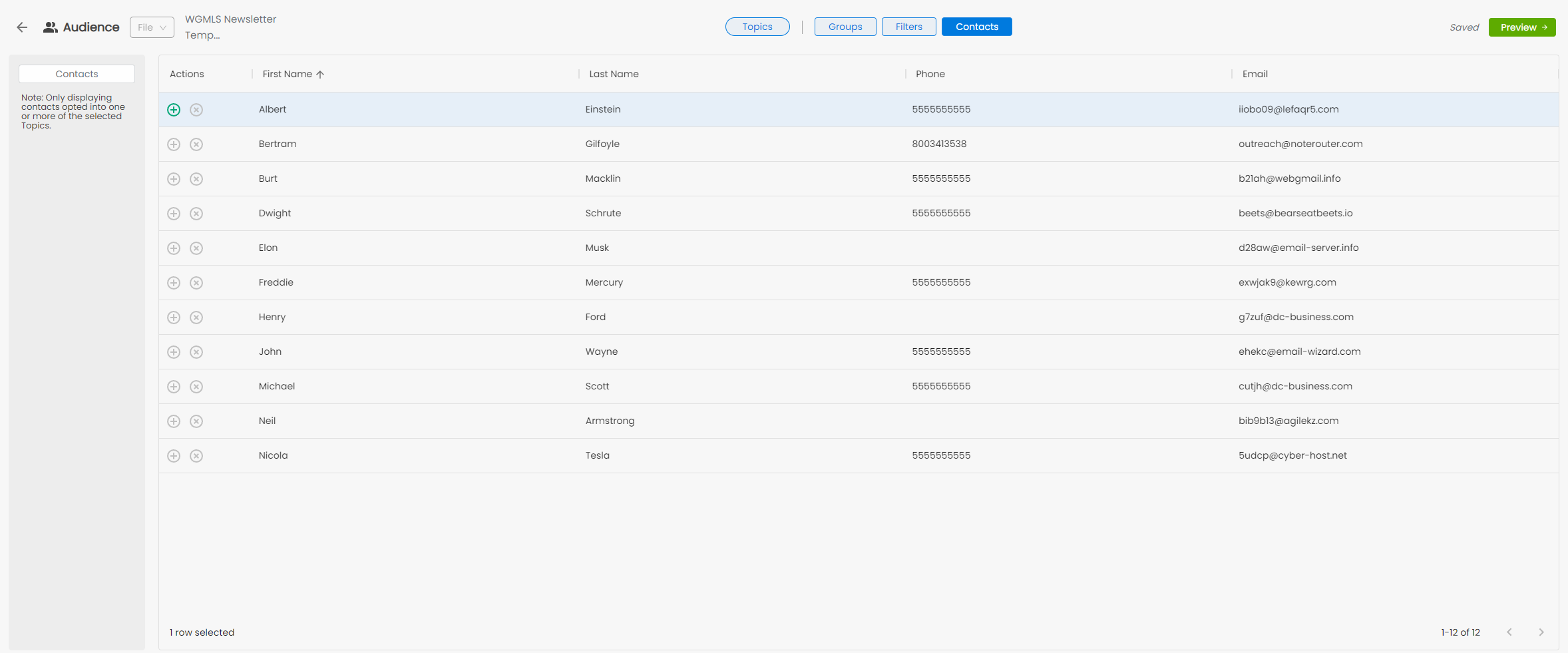
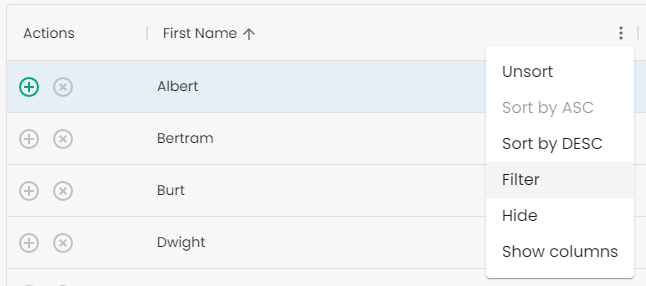
If you're having trouble finding a specific contact, you can search for them by selecting the three dots next to a field name, and choosing to "filter" and search. If they don't show up, it's likely that they're not opted into a topic you've selected.
Conclusion
Hopefully, this deep dive on Message Audiences gave you some ideas on creating audiences and answered some questions you may have had - but we know that it also may have created some new ones! As always, reach our team at support@noterouter.com for helpful guidance and support.
Last but not least: it wouldn't be a deep dive if we didn't leave you with a final example of a particularly sophisticated message audience.
Example Audience:

Contacts interested in Pro Tips or Legal [2 Topics]
and who are Grouped as Agents or Affiliates [+2 Groups]
but require Primary Member and exclude MLS-Only Members [+1 Required Group and +1 Excluded Group]
and whose Home State is California or Arizona [+1 Filter with 2 values]
and whose Office City is Newbury Park or Thousand Oaks. [+1 Filter with 2 values]